PRODUCT DOCUMENTATION
Get started with locations & audio zones.
Create the location
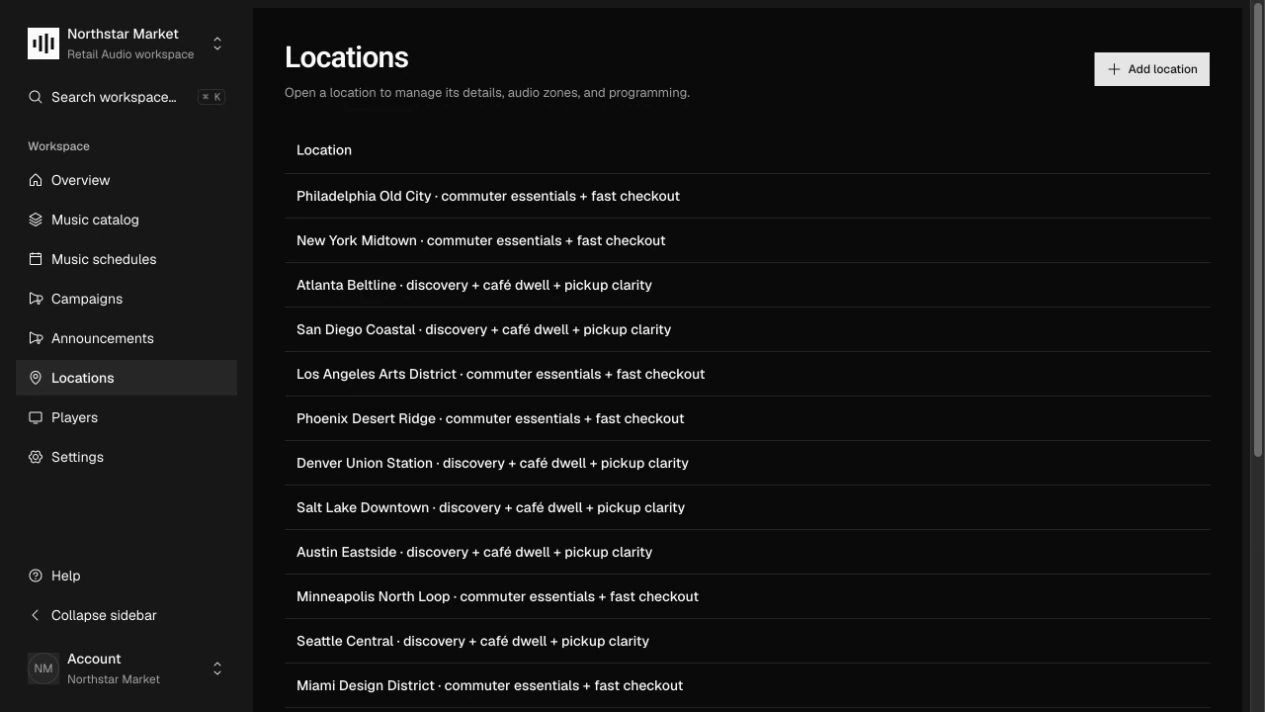
Open Locations and add the store’s Name, Store code, and Timezone. Add Address and coordinates where useful. Choose an IANA timezone such as America/Los_Angeles so programming follows the store’s local clock.
Divide it into audio zones
Open the location and create an audio zone for each separately programmed area. Set a clear Name, optional Area size (m²), and Tags. Keep the location and zone Active when they should receive programming.
Assign the music and local rules
Open a zone and select its Weekly music schedule. Review inherited campaign rotation, volume, audio levels, and Playback limits. Add overrides only for values or time windows that should differ from account defaults.
Use tags to target messages
Add key/value tags for meaningful groups, such as region or area type. Choose Match by tags in Campaigns or Announcements to reach those groups. Review each zone’s Campaign rotation pool and Timed announcements before publishing.
How it works.
Locations, zones, and accounts
A location represents a store and owns its timezone. A zone belongs to one location and selects one weekly music schedule. The open-source installation supports many locations and zones within a single account; Zonecast Cloud supports multiple separate accounts.
Inheritance with local control
Audio and playback settings inherit per field. Zone calendar slots override only their time windows, leaving gaps to inherit account calendars. Removing an override restores the relevant account setting.
Targeting scopes
Tag conditions support all, any, and not, plus equality, presence, and absence. Target location tags, zone tags, or effective tags, where a zone value overrides the same key on its location.
Work through the API.
The same workflow is available through the core HTTP API. Paths below are relative to your core API origin. Your installation serves the full request and response schemas at /docs/ and /openapi.json.
| Method | Endpoint | Purpose |
|---|---|---|
POST | /v1/locations | Create a store with its code, timezone, and tags. |
POST | /v1/zones | Create an audio zone linked by locationId. |
PATCH | /v1/zones/{id} | Update schedule assignment, tags, or local overrides. |
GET | /v1/zones/{id}/programming | Inspect the zone’s music, calendars, messages, and effective settings. |
Things to know.
- A self-hosted account is one tenant; creating more zones does not create isolated customer accounts.
- Zone programming includes draft and paused messages for review. Their presence in the view does not mean they are published or playing.