PRODUCT DOCUMENTATION
Get started with music catalog & playlists.
Start with an owned catalog
Open Music catalog and create a catalog for audio your team manages. Open its Tracks tab to upload recordings. Keep useful titles, artists, and tags with each track so the library stays easy to browse.
Choose your playlist’s sources
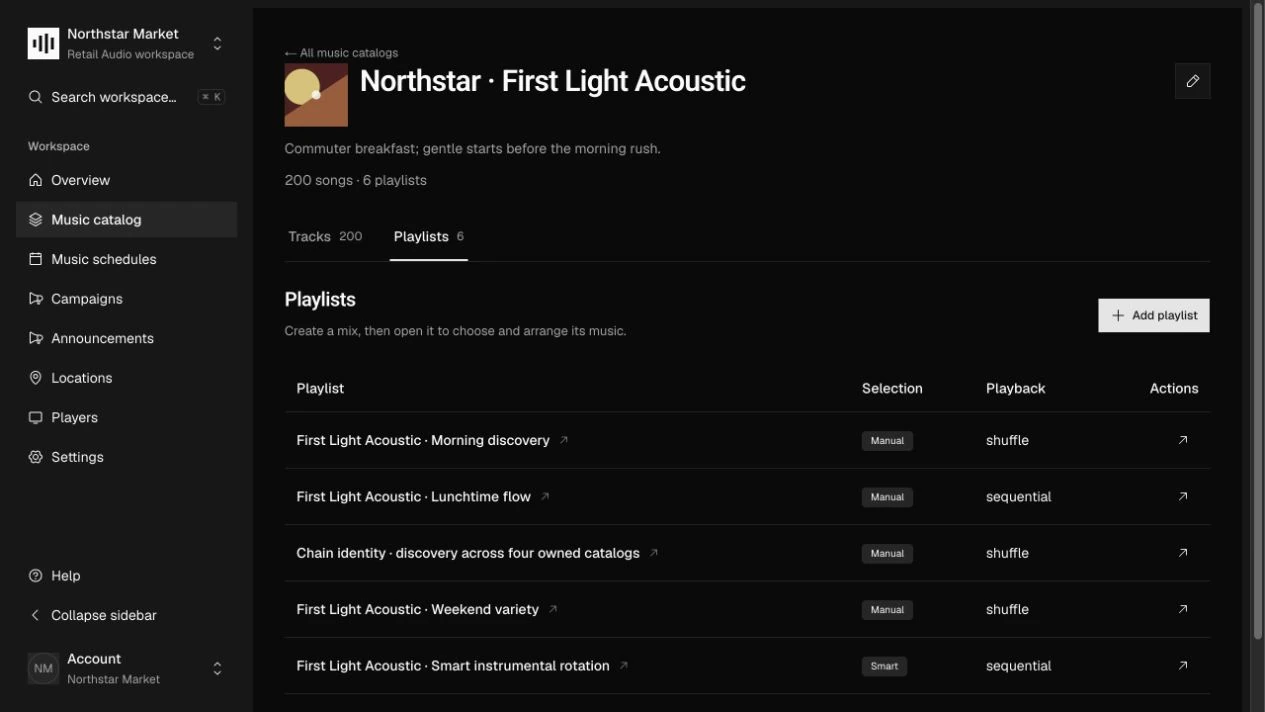
Open the catalog’s Playlists tab and create a manual or smart playlist. Under Playlist music, select Source catalogs. A playlist can draw from several catalogs, including read-only subscribed catalogs.
Set the music selection
For a manual playlist, use Add track, arrange the tracks, and choose Save playlist music. For a smart playlist, configure tag conditions; matching tracks are selected from its source catalogs.
Put the playlist on the calendar
Open Music schedules and select the playlist in a time slot. Assign that weekly schedule to the relevant audio zones. Upload a new recording version when the audio changes instead of replacing an existing file.
How it works.
Sources and ownership
Every manual playlist track must belong to a declared source catalog. Remove its tracks before removing that source. Subscribed catalogs and their tracks are read-only; playlists you own can still use those recordings.
Recording history
A new audio attachment creates an immutable numbered version. File references and verified metadata stay tied to that version, giving updates a clear history without changing the bytes behind an earlier recording.
Work through the API.
The same workflow is available through the core HTTP API. Paths below are relative to your core API origin. Your installation serves the full request and response schemas at /docs/ and /openapi.json.
| Method | Endpoint | Purpose |
|---|---|---|
POST | /v1/music/catalog | Create an owned music catalog. |
POST | /v1/music/playlists | Create a manual or smart playlist. |
PUT | /v1/music/playlists/{id}/sources | Replace the playlist’s source catalog selection. |
PUT | /v1/music/playlists/{id}/items | Save the ordered tracks and weights of a manual playlist. |
Things to know.
- Zonecast does not include a licensed music catalog. Supply audio you have permission to use in your stores.
- Owned catalogs and read-only subscribed catalogs are available. Importing a provider catalog, and moving a catalog between accounts, are not available yet.